Create LDAP Authorization Provider
The following section covers how to setup an LDAP authorization provider for user authentication
Log on to ASI and navigate to Settings
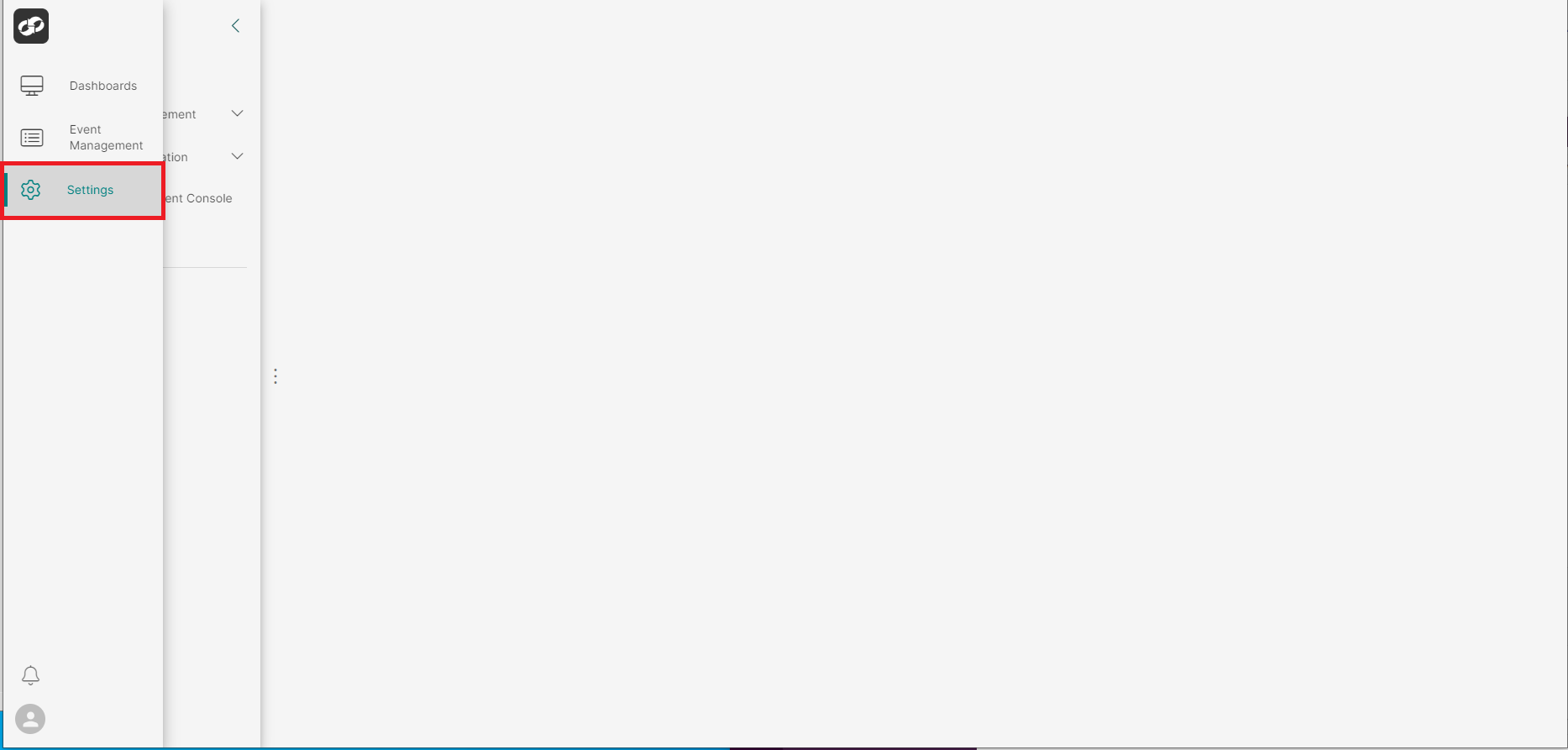
From the index on the left, select Access Management then Authorization Providers
You will then be presented with the Authorization Providers page

- Click the
CREATEbutton in the top right of the page which will bring up an option list of provider types. - Click
LDAP
You will then be presented with the Create Federation Provider page
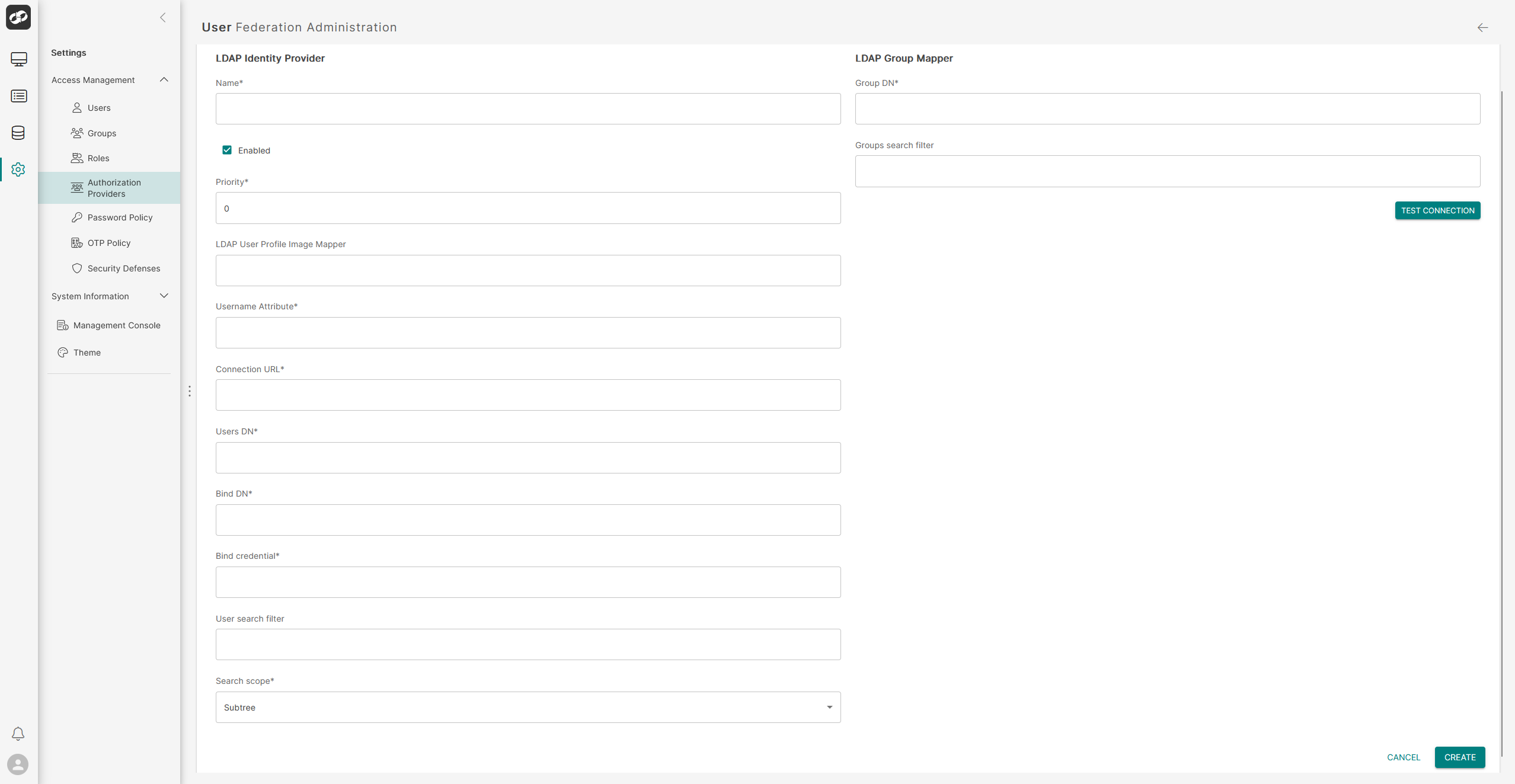
Define the attributes for LDAP authentication
LDAP Identity Provider
- In the
Namebox, type a name for the authentication - Check the
Enabledcheck box to enable the authentication - In the
Prioritybox, define a priority (zero by default) - In the
LDAP User Profile Image Mapperbox, enter the name of the attribute in LDAP that contains each user's image (if any) - In the
Username Attributebox, enter the name of the attribute in LDAP that contains the username - In the
Connection URLbox, enter the URL of the LDAP server - In the
Users DNbox, enter the base distinguished name (DN) where user accounts are located within LDAP. (This is a string of attribute=value pairs, separated by commas, that specifies the hierarchical location of the users). For example: OU=Users,OU=dummy,DC=org,DC=com
OU=Users | Represents the organizational unit (OU) that contains the user accounts
OU=dummy | Represents the department within the company to which the user belong
DC=org | Specifies the name of the company's domain
DC=com | Indicates the domain suffix, such as .com, .org, etc
- In the
Bind DNbox, enter the distinguished name (DN) of the LDAP account used for binding (e.g.,CN=dummybind,OU=Users,DC=dummy,DC=com) - In the
Bind Credentialbox, enter the password for the bind DN account to authenticate with the LDAP server - In the
User search filterbox, enter an LDAP query to search for users, typically mapping the username to a specific LDAP attribute (e.g.,(sAMAccountName={username})) - In the
Search scopedropdown, select either One Level (to search only within the specified organizational unit) or Subtree (to search within the specified organizational unit and all its sub-units)
LDAP Group Mapper
- In the
Group DNbox, enter the base distinguished name (DN), consisting of attribute=value pairs separated by commas, used to search for users when retrieving group information (e.g.,OU=ASI3,OU=Testing,OU=Groups,OU=dummy,DC=org,DC=com). - In the
Groups search filterbox, enter an LDAP query to search for groups, such as(objectClass=group)to find all groups or(&(objectClass=group)(cn=ASI3_TEST_GROUP))to find groups containing a specific name
You can check the configuration by clicking Test Connection which should return Success! Connections are good
- Click
Applyto apply the new authentication